


Telehealth Quick Start Guide.
Last Updated: Feb 14, 2026
Feel free to contact us with any of your questions via email to assistance@juneva.com, or call us at 1-855-688-3760 and select option 3.
5 Steps to Check In for Your Telehealth Session
- Select Device
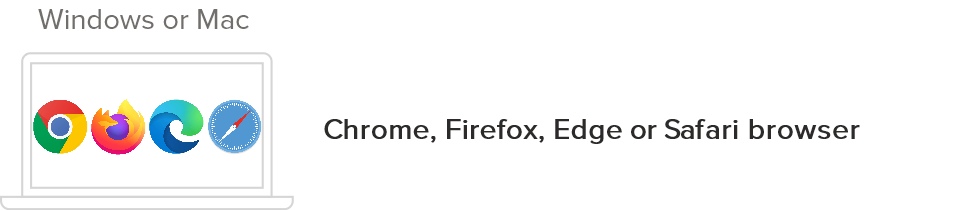
Use a desktop or laptop computer with a camera and microphone. - Go to Practitioner's Virtual Room
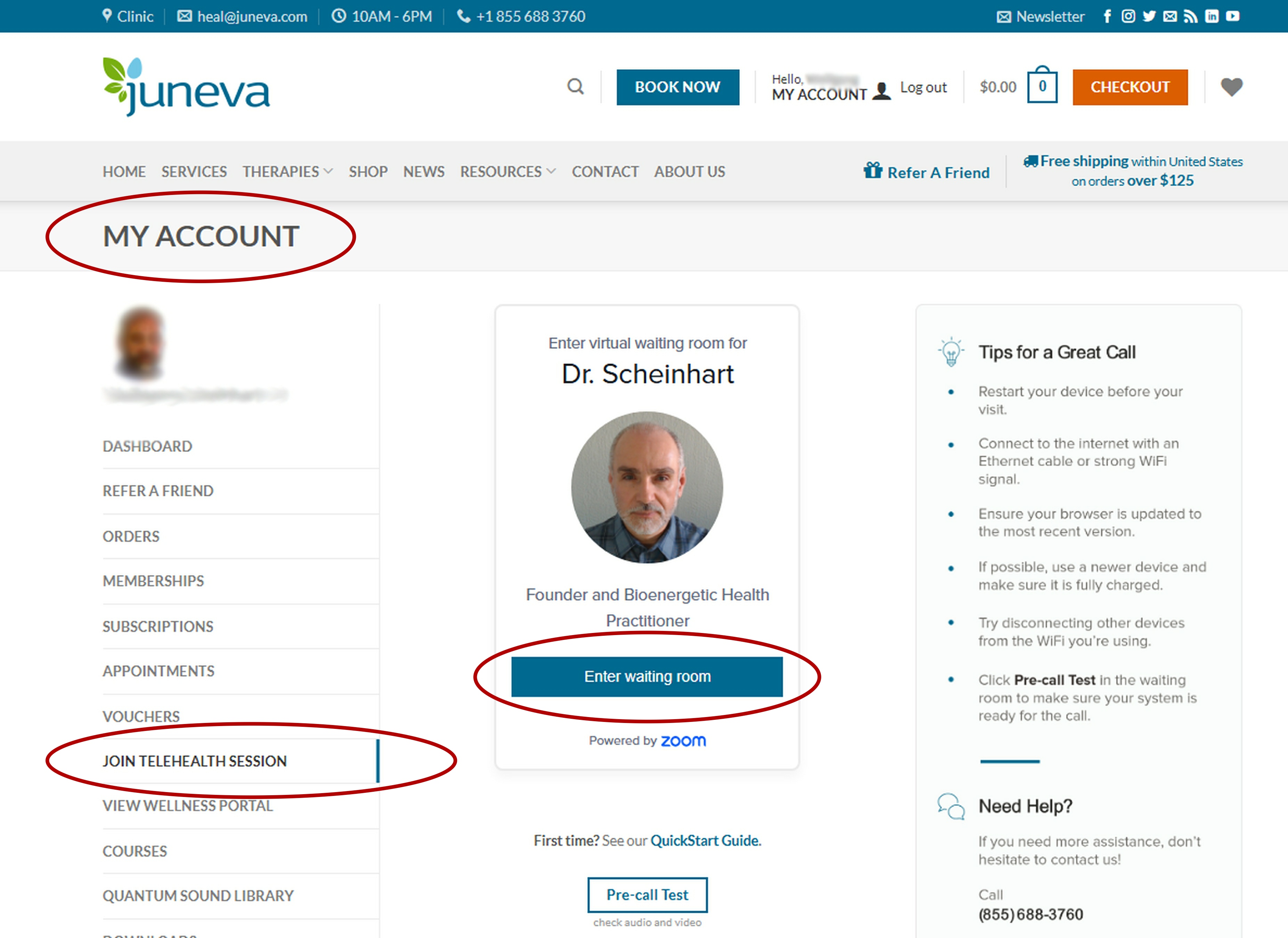
Option #1 - Click 'Enter waiting room' in the 'Join Telehealth Session' selection within your juneva.com 'My Account' area.
Option #2 - Click 'Link' in your appointment confirmation/reminder email or enter the web address into your browser.
- Zoom Opens In Your Browser
Your browser will open Zoom automatically. No downloads needed.
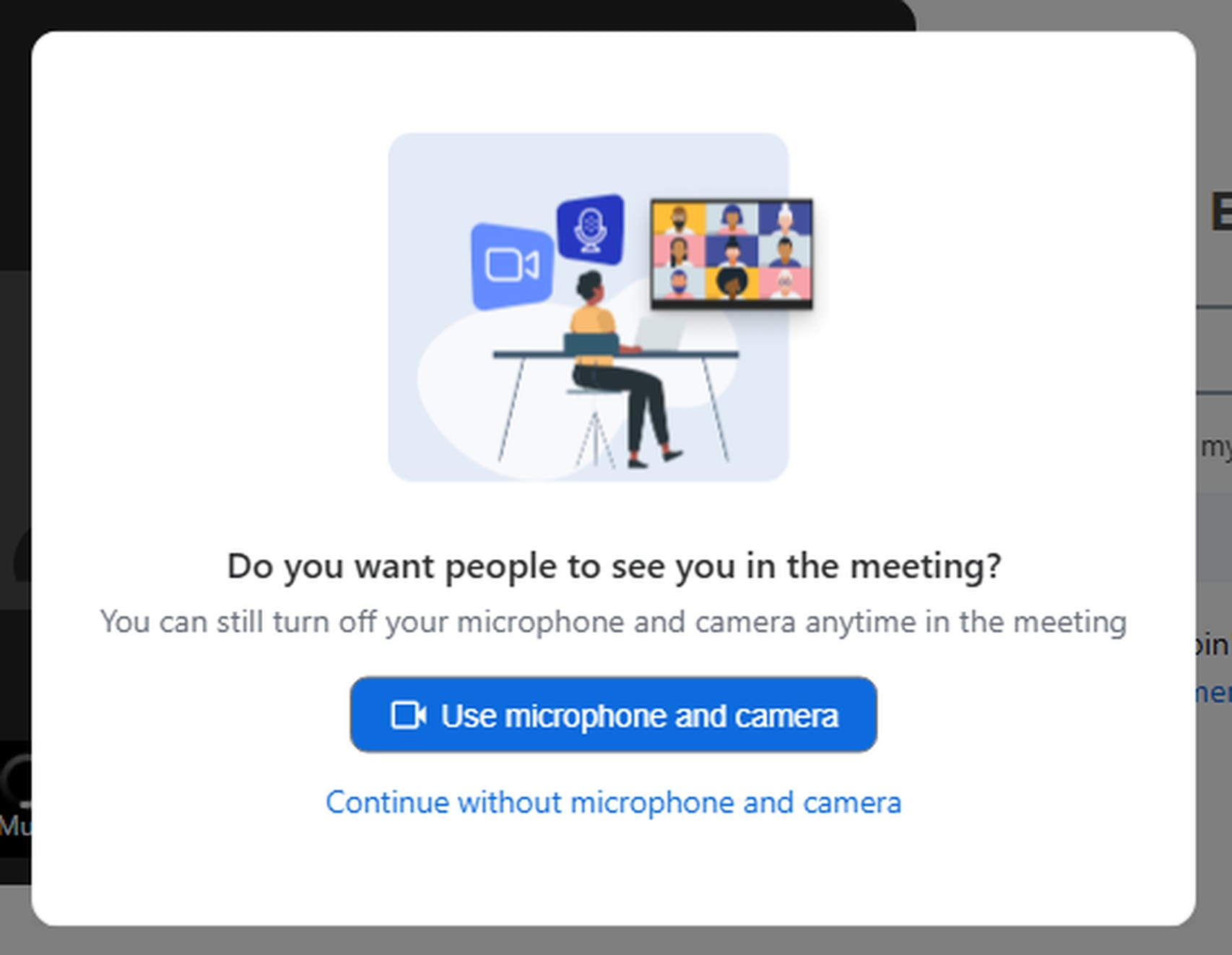
Click ‘Use microphone and camera’. - Check Audio/Video & Enter Your Name
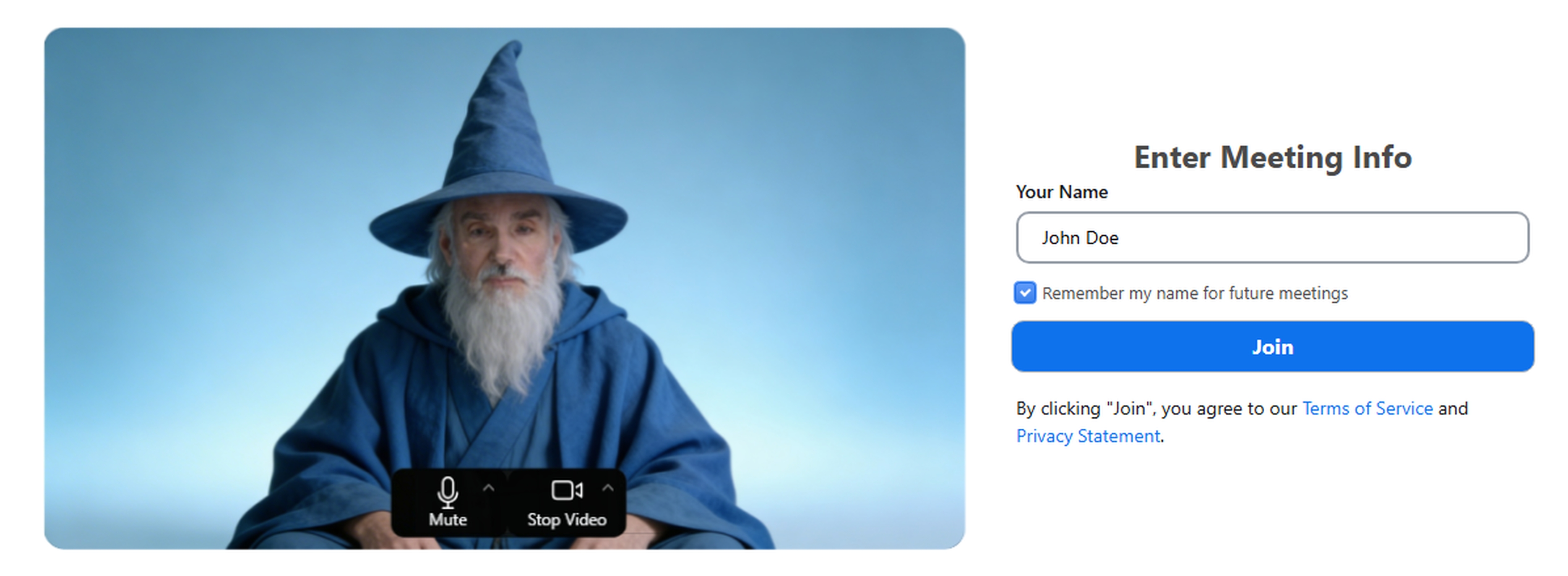
Turn-on / adjust your microphone & camera, and type your name. Then Click 'Join'. - You're In the Waiting Room
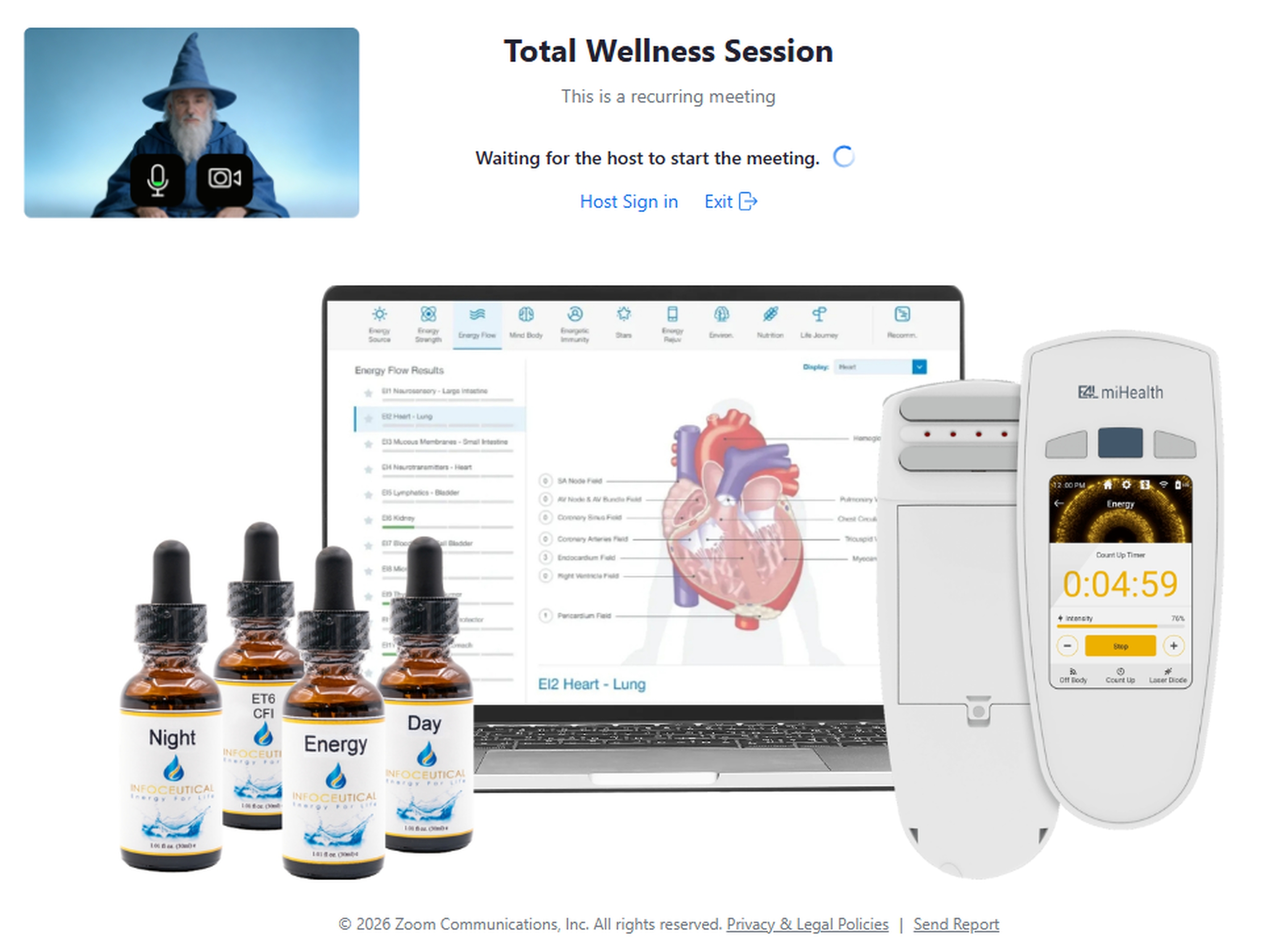
You'll enter the waiting room. Your practitioner will admit you shortly.

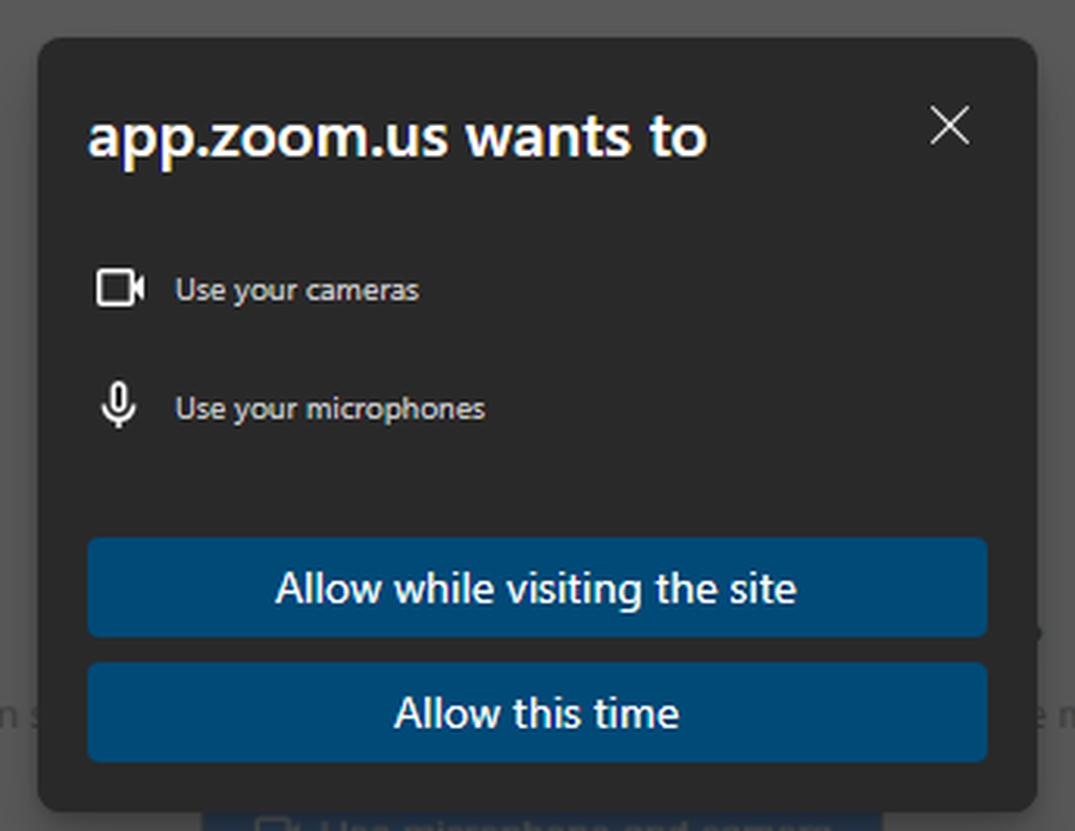
Then Click ‘Allow this time’.
How to Join a Telehealth Session Video
Additional Help
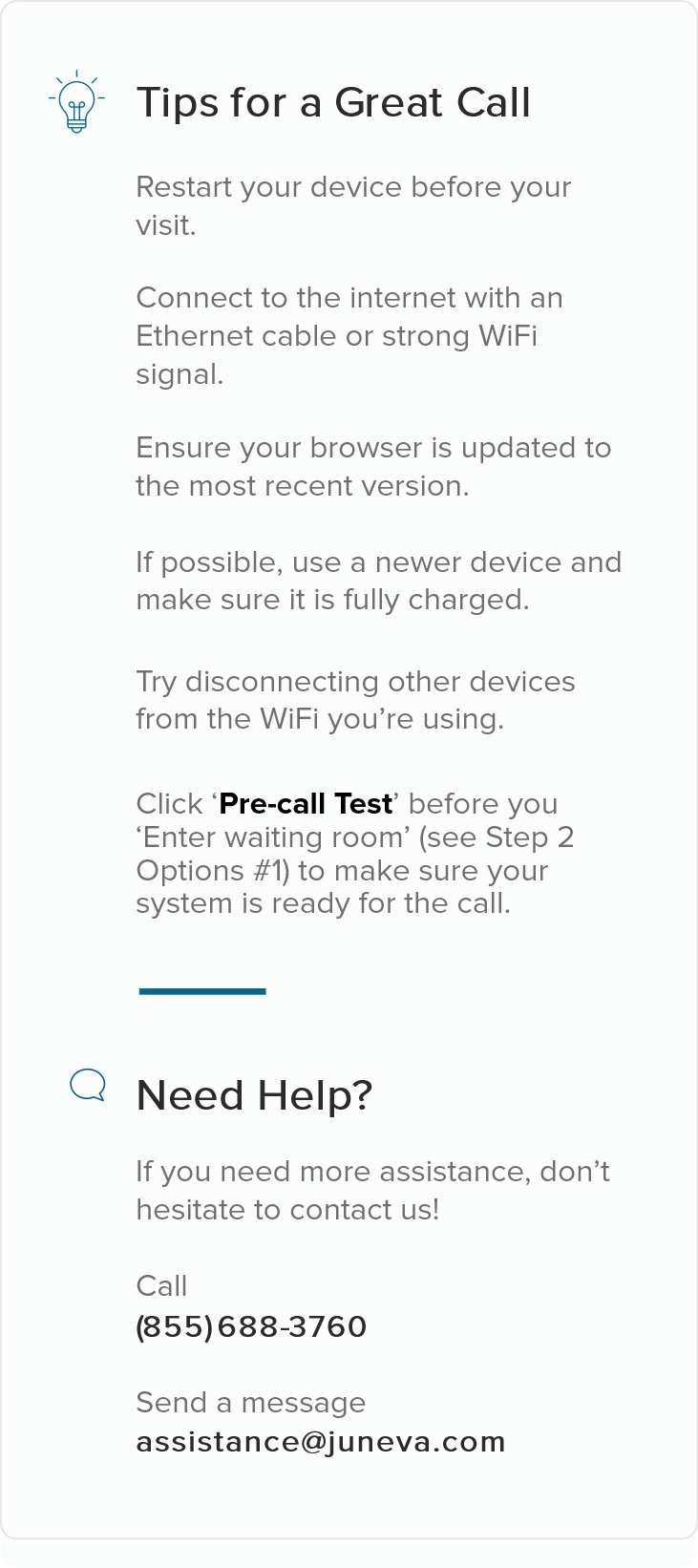
Technical Guide
Review tips and advice for audio, internet, video, and device support.